
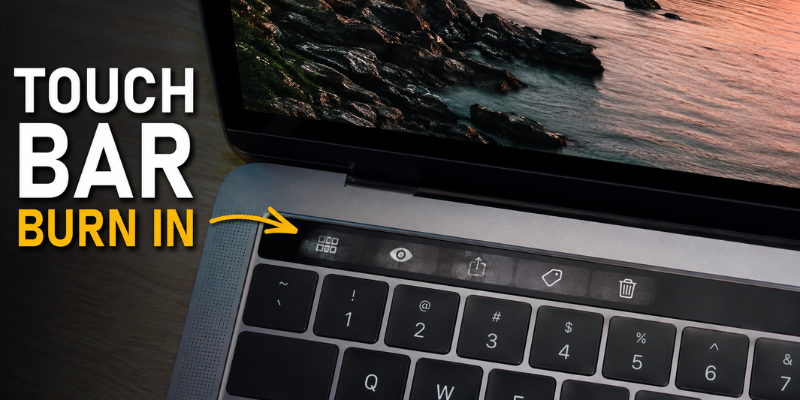

The MacBook Touch Bar was introduced as a sleek, interactive replacement for traditional function keys. While many users appreciated its convenience, others eventually noticed a frustrating issue—touch bar burn in. Faint icons or keyboard shortcuts sometimes remain visible even after switching apps, leaving owners wondering whether their MacBook has a serious hardware problem.
If you’ve experienced this issue, you’re not alone. This guide explains what Touch Bar burn in is, why it happens, whether it can be fixed, and the best ways to prevent it from getting worse.
What Is Touch Bar Burn In?
Touch Bar burn in refers to a phenomenon where static images remain faintly visible on the Touch Bar display even after the content changes. This is often caused by prolonged display of the same icons, buttons, or interface elements.
The Touch Bar uses OLED display technology, which delivers excellent brightness and contrast. However, OLED panels are naturally more susceptible to image retention and permanent burn in than traditional LCD screens.
Common signs include:
- Faint outlines of previous app controls
- Ghost images that remain visible
- Uneven brightness
- Persistent function key icons
In many situations, what users call burn in is actually temporary image retention rather than permanent damage.
Why Does Touch Bar Burn In Happen?
Like smartphone OLED screens and modern televisions, the MacBook Touch Bar ages as its pixels are used.
Several factors contribute to burn in.
Static Images Stay Too Long
The Touch Bar often displays identical controls for hours.
Examples include:
- Escape key
- Volume controls
- Brightness slider
- Application shortcuts
Pixels showing the same image continuously wear faster than surrounding pixels.
High Brightness
Running the Touch Bar at maximum brightness accelerates OLED aging.
Brighter pixels generate more heat, increasing long-term wear.
Long Daily Usage
Professionals using their MacBook for:
- Coding
- Video editing
- Graphic design
- Music production
may keep the same interface visible throughout an entire workday.
Image Retention vs Permanent Burn In
Many users panic the first time they notice ghost images. Fortunately, not every case is permanent.
| Image Retention | Permanent Burn In |
|---|---|
| Temporary | Permanent |
| Usually disappears | Remains visible |
| Caused by short-term pixel charge | Caused by uneven OLED aging |
| Can improve after rest | Requires hardware replacement |
A friend of mine noticed faint Safari controls after a six-hour editing session. He shut down the MacBook overnight, and the ghost image disappeared completely the next morning. That was image retention—not true burn in.
How to Check if Your Touch Bar Has Burn In
Testing is surprisingly simple.
Try these steps:
- Restart your MacBook.
- Open several different applications.
- Watch whether old icons remain visible.
- Increase and decrease brightness.
- Display a solid white background if possible.
If the same outlines remain visible regardless of what’s displayed, your Touch Bar may have permanent burn in.
Another useful test is to leave the MacBook turned off for several hours. Temporary image retention often fades after the display rests.
Can Touch Bar Burn In Be Fixed?
The answer depends on how severe the problem is.
Temporary Image Retention
If the issue is only temporary, these methods often help:
- Restart the MacBook.
- Shut it down overnight.
- Reduce brightness.
- Let the display rest periodically.
Many users report improvement after allowing the OLED panel to cool and recover.
Permanent Burn In
Unfortunately, permanent burn in cannot truly be repaired through software.
Possible solutions include:
- Touch Bar replacement
- Top case replacement (on certain MacBook models)
- Apple repair service
- Authorized repair center
If your MacBook is still under warranty or covered by AppleCare, it’s worth contacting Apple Support before paying for repairs.
Practical Ways to Prevent Touch Bar Burn In
Preventing burn in is much easier than fixing it.
Lower the Brightness
One of the easiest improvements is reducing Touch Bar brightness.
Even lowering it by 20–30% can reduce long-term pixel wear.
Enable Automatic Sleep
Configure your MacBook so the display sleeps quickly when idle.
This limits unnecessary OLED usage.
Avoid Leaving Static Apps Open
If you’re stepping away for lunch, lock your MacBook or allow it to sleep instead of leaving the same interface displayed for hours.
Update macOS
Apple occasionally improves Touch Bar behavior through macOS updates.
Software improvements can reduce unnecessary static display time.
Change Work Habits
If you spend all day in one application:
- switch windows occasionally
- use keyboard shortcuts
- vary displayed controls
These small habits distribute OLED wear more evenly.
Which MacBooks Are Most Affected?
Touch Bar burn in is primarily associated with MacBook Pro models equipped with the OLED Touch Bar.
These include:
- MacBook Pro (2016)
- MacBook Pro (2017)
- MacBook Pro (2018)
- MacBook Pro (2019)
- MacBook Pro (2020 Intel)
Apple removed the Touch Bar from newer MacBook Pro models beginning in late 2021, replacing it with physical function keys.
While not every Touch Bar develops burn in, heavy users tend to notice it more often after several years.
Is Touch Bar Burn In Covered Under Warranty?
Warranty coverage depends on several factors.
Apple may inspect the device to determine whether the issue resulted from:
- manufacturing defects
- normal display aging
- accidental damage
If your MacBook remains under warranty or AppleCare+, it’s always worth scheduling an inspection before assuming you’ll need to pay for repairs.
Out-of-warranty repairs typically involve replacing the Touch Bar assembly or, in some cases, the entire top case.
Is Burn In a Reason to Avoid Buying a Used Touch Bar MacBook?
Not necessarily.
Many used MacBooks still have perfectly functioning Touch Bars.
Before purchasing:
- Check brightness consistency.
- Look for ghost images.
- Test multiple applications.
- Inspect the Touch Bar on white and dark backgrounds.
- Verify overall keyboard condition.
A quick inspection can save you from unexpected repair costs later.
Frequently Asked Questions
Can Touch Bar burn in disappear on its own?
Yes. If the issue is temporary image retention, it often fades after the MacBook is turned off for several hours or after regular use.
Is Touch Bar burn in common?
It isn’t extremely common, but it does occur on some heavily used MacBook Pro models with OLED Touch Bars, especially after years of continuous use.
Does lowering brightness really help?
Yes. Lower brightness reduces OLED pixel stress, slowing uneven aging and decreasing the likelihood of permanent burn in.
Can software repair permanent Touch Bar burn in?
No. Software may help with temporary image retention, but permanent OLED burn in requires hardware replacement.
Should I replace my MacBook because of Touch Bar burn in?
Not necessarily. If the Touch Bar still functions correctly and the ghosting is minor, many users continue using their MacBook without issue. Replacement is usually only necessary if the display becomes distracting or unusable.
Conclusion
Touch Bar burn in is one of the few drawbacks of OLED display technology, but it doesn’t always mean your MacBook is permanently damaged. In many cases, the issue is simply temporary image retention that improves with time and proper care. By lowering brightness, avoiding prolonged static images, and allowing the display to rest, you can significantly reduce the risk of long-term damage. If permanent burn in does occur, professional repair remains the most reliable solution.