
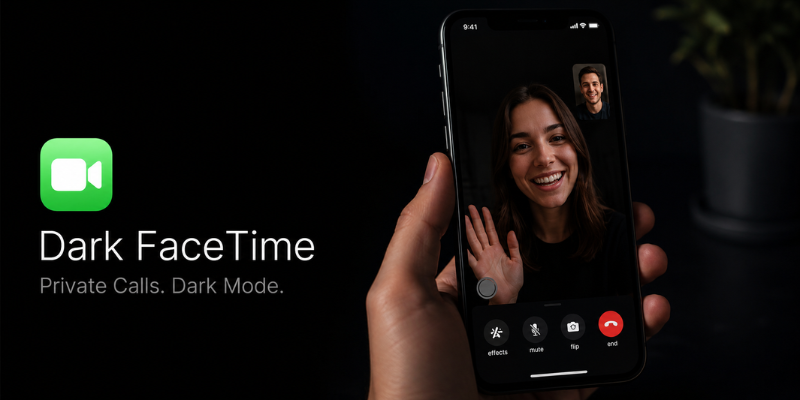

Have you ever opened FaceTime in a dim room only to wonder why everything looks darker than expected? You’re not alone. Many Apple users search for “dark FaceTime” to understand whether it’s a feature, a problem, or simply the result of low-light conditions.
The truth is that dark FaceTime can mean different things. It may refer to FaceTime’s appearance in Dark Mode, poor lighting during video calls, or display issues that make the screen seem unusually dim. This guide explains everything you need to know while sharing practical tips to improve your FaceTime experience.
What Does Dark FaceTime Mean?
The phrase “dark FaceTime” doesn’t have one official definition. Instead, people use it in several different ways.
Some users mean:
- FaceTime running in Dark Mode.
- A video call that appears too dark.
- A dim display while using FaceTime.
- Poor lighting affecting camera quality.
- Screen brightness automatically decreasing during calls.
Understanding which issue you’re experiencing is the first step toward finding the right solution.
FaceTime and Dark Mode Explained
Apple introduced system-wide Dark Mode to reduce eye strain, especially in low-light environments. When Dark Mode is enabled, FaceTime’s interface changes from bright white backgrounds to darker shades.
Dark Mode changes:
- Menus become dark gray or black.
- Buttons are easier on the eyes at night.
- Text appears with higher contrast.
- Overall battery consumption may improve on OLED displays.
However, it’s important to understand that Dark Mode only changes the app’s interface. It does not automatically make your camera image darker.
Many people mistakenly believe Dark Mode affects video quality, but these are completely separate functions.
Why Does FaceTime Look Dark During Video Calls?
If your FaceTime video appears unusually dark, lighting is usually the biggest reason.
Modern iPhones rely heavily on surrounding light. When you’re sitting in a dim bedroom, inside a car at night, or facing away from a window, the camera has less light to capture.
Common causes include:
- Poor indoor lighting
- Strong backlighting behind you
- Dirty front camera lens
- Auto exposure adjusting incorrectly
- Low screen brightness
For example, if you’re sitting with a bright window behind you, the camera exposes for the background, making your face appear much darker.
Simply turning around or adding a lamp nearby often solves the problem immediately.
Simple Ways to Brighten FaceTime Video
Improving your video quality doesn’t require expensive equipment.
Here are practical methods that make a noticeable difference.
Face Natural Light
Natural daylight remains the best lighting source.
Instead of having a window behind you, position yourself so the light shines toward your face.
The improvement is often dramatic.
Increase Screen Brightness
Sometimes the video itself isn’t dark—the display is.
Adjust brightness by opening Control Center and sliding the brightness bar upward.
Higher brightness makes viewing easier during video conversations.
Clean the Camera Lens
A fingerprint or dust layer can soften images and reduce brightness.
Use a microfiber cloth to gently clean the front-facing camera before making important calls.
Use Better Indoor Lighting
Soft white LED lighting placed in front of you creates a much more professional appearance.
Avoid overhead lights alone because they often create shadows under your eyes.
Privacy Benefits of Using FaceTime in Dark Mode
Many users prefer Dark Mode because it offers more than just aesthetics.
Benefits include:
- More comfortable viewing at night.
- Reduced eye fatigue during long conversations.
- Less distracting interface.
- Better visibility in dark environments.
- Improved battery efficiency on compatible displays.
If you frequently make evening video calls, Dark Mode creates a more relaxing experience without affecting call quality.
Common FaceTime Problems That Cause a Dark Screen
Sometimes the issue isn’t lighting at all.
Software glitches may temporarily affect FaceTime.
Possible causes include:
- iOS bugs
- Camera permission issues
- Temporary system errors
- Low Power Mode reducing brightness
- Auto Brightness settings
Fortunately, these issues are usually easy to fix.
How to Fix Dark FaceTime Issues
If your FaceTime still looks unusually dark, try these troubleshooting steps.
Restart Your Device
A simple restart clears temporary software glitches.
Many camera-related issues disappear after rebooting.
Update iOS
Apple frequently releases updates that improve camera performance and fix bugs.
Keeping your device current ensures FaceTime performs as intended.
Check Auto Brightness
Sometimes Auto Brightness reduces screen intensity more than expected.
You can disable it temporarily to see whether it improves visibility.
Test the Camera App
Open the regular Camera app.
If photos also appear dark, the issue likely isn’t limited to FaceTime.
If only FaceTime looks dark, restarting or updating the app usually helps.
Tips for Better FaceTime Calls at Night
Nighttime video calls are common, especially with friends and family in different time zones.
Follow these habits for clearer calls:
- Sit near a table lamp.
- Avoid bright lights directly behind you.
- Hold the phone steady.
- Keep your camera at eye level.
- Charge your battery before long calls.
- Use Wi-Fi for smoother video quality.
These small adjustments create a noticeable improvement without additional accessories.
Does Dark FaceTime Affect Call Quality?
No.
Dark Mode itself has no effect on:
- Video resolution
- Internet speed
- Audio quality
- Camera performance
- FaceTime connection stability
The only thing that changes is the appearance of the application’s interface.
Actual video quality depends mainly on lighting conditions, camera hardware, and internet connection.
Is Dark FaceTime Better for Your Eyes?
Many users believe so.
Although personal preferences vary, darker interfaces generally produce less glare in dark environments.
Benefits may include:
- Reduced eye strain
- More comfortable nighttime viewing
- Less screen fatigue
- Improved reading comfort
- Better overall user experience during extended calls
If you often use FaceTime before bed, Dark Mode is worth trying.
Frequently Asked Questions
Does FaceTime have a built-in night vision mode?
No. FaceTime does not include true night vision. Good lighting remains the best way to improve video quality in dark environments.
Why does my FaceTime screen become dim automatically?
This is usually caused by Auto Brightness, Low Power Mode, or ambient lighting sensors adjusting your display.
Can Dark Mode make FaceTime video darker?
No. Dark Mode changes only the app interface. It does not affect your camera image.
How can I make myself look brighter during FaceTime?
Face a natural light source, increase screen brightness, clean the front camera lens, and avoid sitting with bright lights behind you.
Why is my FaceTime camera darker than my Camera app?
Temporary software glitches, exposure differences, or app settings may cause this. Restarting your device and updating iOS usually resolves the issue.
Conclusion
Dark FaceTime is often misunderstood. In most cases, it refers either to Apple’s Dark Mode interface or to video calls affected by poor lighting rather than an actual software problem. By improving your lighting, adjusting brightness, and keeping your device updated, you can significantly enhance your FaceTime experience. A few simple changes often make your video calls clearer, brighter, and much more enjoyable.